Adding a New Dataset Image
This guide will show you how to add an image to a dataset in an existing Marble project. The following steps assume that you have an existing Marble project, as well as an image file that you would like to add to one of your project's datasets.
Add the image file
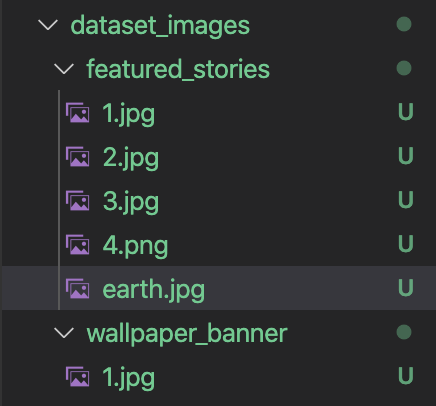
First, find your project's dataset images directory. (This path is usually ./dataset_images, but check your Marble config file to be sure.) Your dataset images directory should look something like the following image:

Within your dataset images directory are a few subdirectories that correspond to different homepage datasets. Identify the subdirectory that matches the dataset you want to modify, and copy your image file into that subdirectory. For example, if you want to add an image for a featured story tile, it belongs to the featured_stories dataset and therefore should be copied into the featured_stories subdirectory within your dataset images directory:
Can't find a subdirectory for your dataset?
If there's no subdirectory that matches the dataset you want to modify, some further investigation is needed. As an example, let's say you want to add an image for a category tile on your homepage, but do not see a category_tiles subdirectory inside your project's dataset images directory:
First, confirm that the category_tiles dataset already exists in your project. Inspect your project's datasets directory (typically located at ./datasets) and make sure there is a category_tiles.csv file.
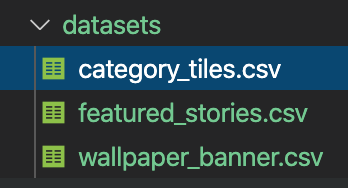
Now, having confirmed that the category_tiles dataset exists in your project, go back to the dataset images directory and create a new subdirectory called category_tiles.
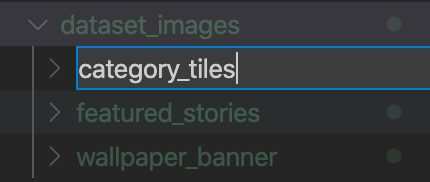
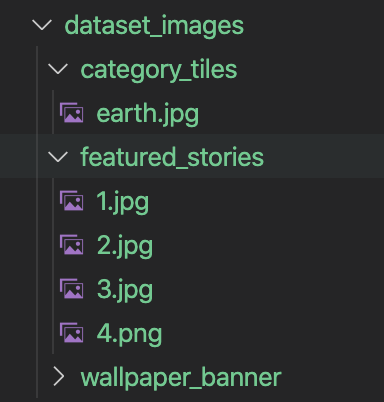
Once you've created the subdirectory, copy your image file into it.
Dataset file doesn't exist in your project?
If you can find neither a matching subdirectory in the dataset images directory nor a dataset CSV file in the datasets directory, the dataset needs to be added to your project. Please refer to Adding a New Dataset for detailed instructions.
Add an image reference to the dataset CSV
In order for your new image to appear on your homepage, it must be referenced within a dataset row. To add this reference, you must edit the dataset's CSV file in your project's datasets directory.
Go to your project's datasets directory (typically found at ./datasets) and use a code editor to open the CSV file whose name matches the dataset you wish to modify, e.g. featured_stories.csv.
Inside featured_stories.csv, find the row where the value of the sort_order column is 1. At the end of the row should be an image column value.

Replace the existing value (in this example, 1.jpg) with your new image file's name, e.g. earth.jpg.

Uploading the modified dataset and image
To see this image reflected in your homepage, you can now upload your modified dataset and your new image to Socrata by executing the following command:
marble populate
Now you can review your updated homepage by running a local development server:
npm start
This should automatically open up a browser tab to http://localhost:1414, where you'll see a live local deployment of your hompage.
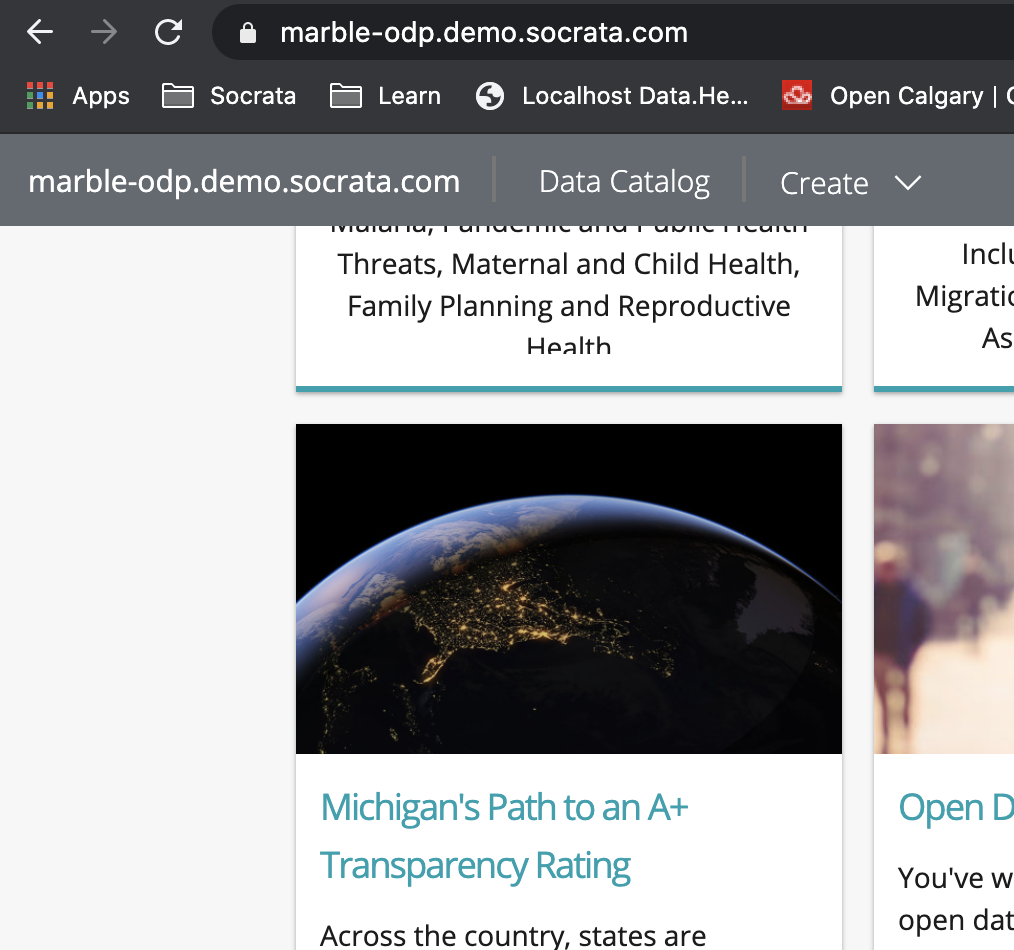
If you've followed the above steps, you should now see your new image in the first featured story tile.

Deploying the homepage
The last step is to deploy your homepage web content to Socrata. Uploading homepage content also updates the bindings linking the datasets to the homepage on the Socrata domain.
Note: Be sure to verify that you are using the desired domain before running this command. Here's how to check: First, check the .marble_default file in your project directory. This file contains a file path reflecting the default configuration Marble will use when deploying your project. Using a code editor, open the configuration file listed in .marble_default and find the domain field. This is th domain to which your web content will be uploaded.
Run the following command to deploy the homepage:
npm run deploy
Once you refresh the homepage on your Socrata domain, your new image should appear:
Congrats! You have successfully added a new dataset image.