Adding a Dataset
Sometimes a customer asks for new features that are not already part of a template. To support this use case, we can add the specified components and an associated dataset that allows them to edit content without developer support.
This guide shows you how to add a single dataset without affecting the other existing datasets. It does not cover specific changes to homepage code. (You can learn more about adding a whole new homepage feature in Adding Section Headers.)
Initial setup
To create a new homepage project, you must first create a Bitbucket repository and generate a project.
If you are adding a dataset to an existing project, you can skip these steps. (Still, be sure to git pull before you start; this ensures that your project is up to date with any changes committed to Bitbucket.)
Add CSV file
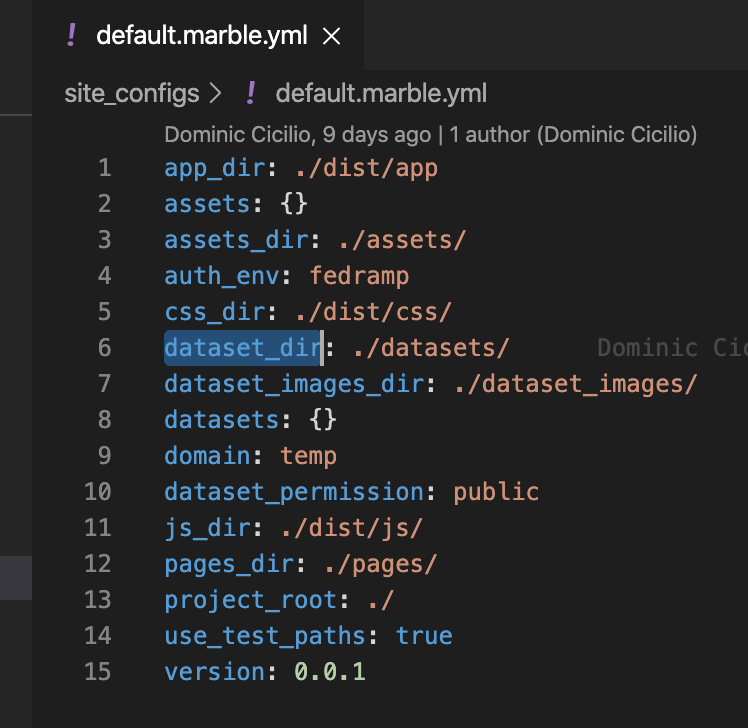
To add a dataset, you must create a comma-separated values (CSV) file and add it to your project's datasets directory. This directory is usually located at ./datasets within the project directory, but if not, the exact path can be found in your current Marble configuration file under the property dataset_dir:
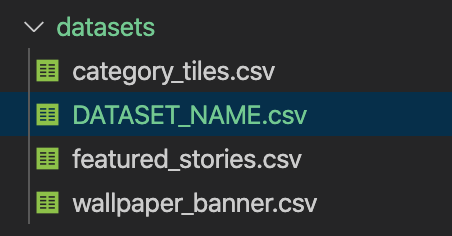
Add your new CSV file, e.g. DATASET_NAME.csv, to the datasets directory. The directory listing should now look like so:
Upload dataset
In order to upload a single new dataset without affecting the other existing dataset, the datasets directory must only contain the new dataset CSV.
As a workaround, you can temporarily move the other dataset CSVs to another directory, as shown below:
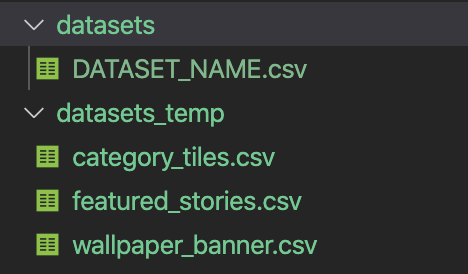
Now you can upload the dataset using the populate command:
marble populate
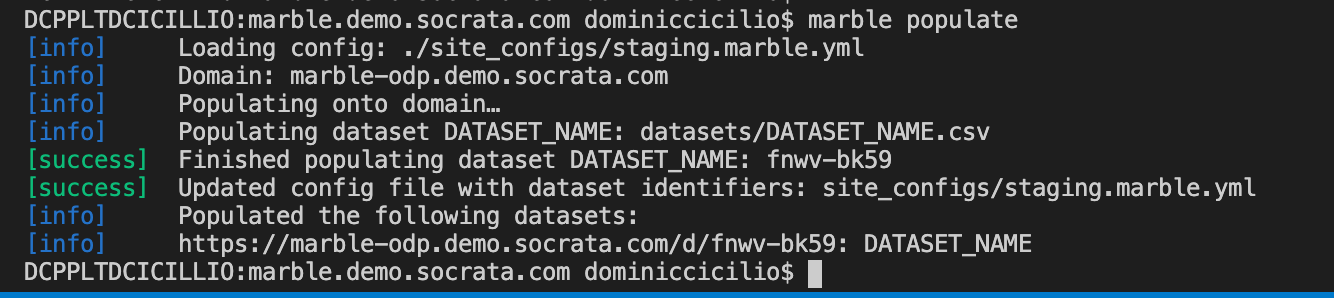
If the dataset was successfully uploaded, you should see output like the following:
Datasets without a sort_order column
Datasets associated with components in a site normally require the presence of a sort_order column. In the case where that column is unnecessary, it is possible to use the --no-sort-order-column option to disable the check.
Move dataset CSVs back to datasets directory
If you had to temporarily relocate the other dataset CSVs in a previous step, you can now move them back to the datasets directory (and remove the temporary directory, if you created one):
Update Bitbucket repository
To keep other developers informed of your changes to this project, be sure to commit and push your new dataset CSV and any other changes to Bitbucket.
First, add all changed files in the local directory to the Git staging area:
git add .
Next, commit the staged files to the repository with a descriptive commit message:
git commit -m "Added new dataset DATASET_NAME"
Finally, upload your committed changes to Bitbucket:
git push
Congrats! You have successfully added a new dataset!