Adding Section Headers
Many customers request the addition of section headers to their homepages. This guide shows you how to add section headers to a new project using the Rally template, as on the USDA Open Ag Transport Data homepage.
Background
Of the current Socrata templates, only Cityscape offers native support for section headers. However, Cityscape's headers do not use our latest section header component, greatly limiting their usefulness and versatility.
Section headers are used to define separate sections of a homepage, with each section containing tiles of some kind. Due to schema limitations, we can't currently specify a section header in the same dataset as tiles.
For now, the best solution is to create a special dataset for section headers. Each header should be defined in a single row, with their order defined by the sort_order field: the topmost section header will have a sort_order value of 1, the second 2, and so on.
Initial setup
To create a new Rally homepage project, you must first create a Bitbucket repository and generate a project with the Rally template.
If you are adding section headers to an existing Rally project, you can skip these steps. (Still, be sure to git pull before you start; this ensures that your project is up to date with any changes committed to Bitbucket.)
Add section headers dataset CSV
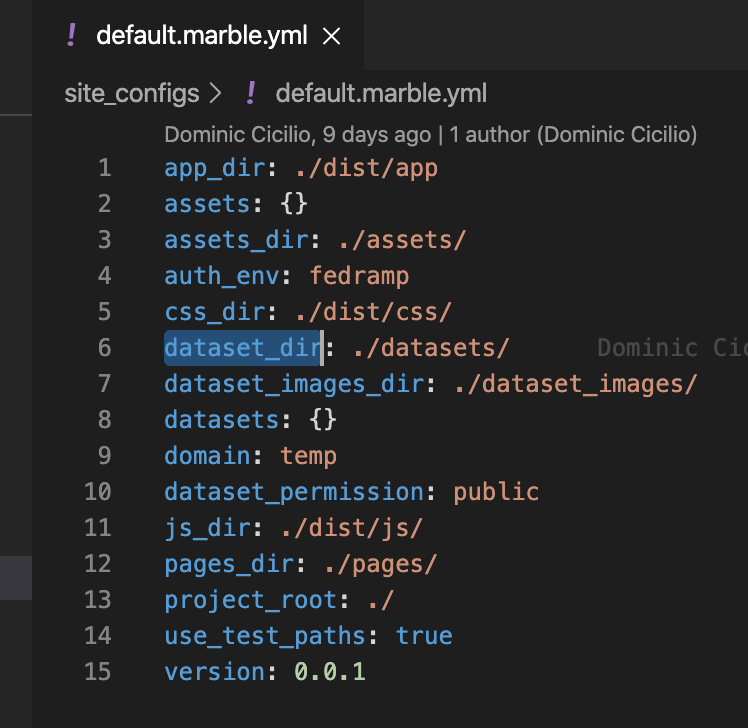
To add the section headers dataset, you must download a comma-separated values (CSV) file for the dataset and add it to your project's datasets directory. This directory is usually located at ./datasets within the project directory, but if not, the exact path can be found in your current Marble configuration file under the property dataset_dir:
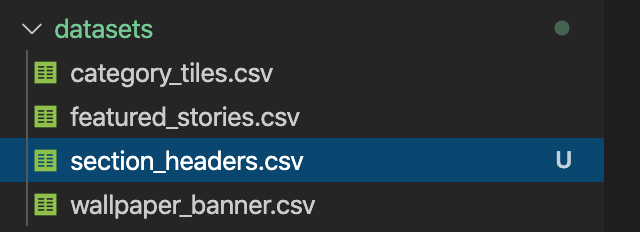
Download the file section_headers.csv from here and move it to the datasets directory. The datasets directory listing should now look like so:
Add custom JavaScript files
Add a JavaScript function to sort headers
To enable section header sorting based on the sort_order field, you must add a custom JavaScript sort function to the homepage.
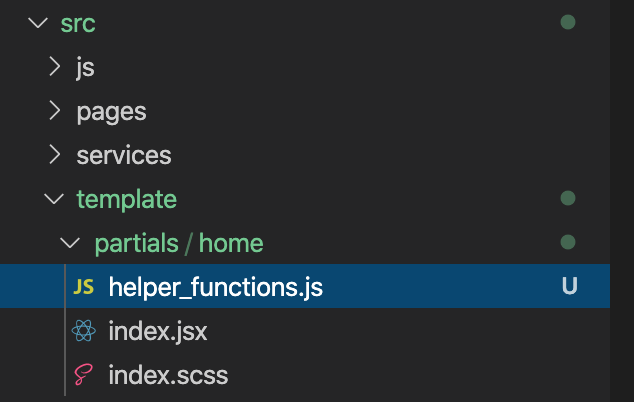
Download the file helper_functions.js from this link, which contains a sort function. Move helper_functions.js to the ./src/template/partials/home directory in your project. (If you are working with an existing project that uses a different directory structure, you may put the file somewhere else.) The directory should look like so:
Add a JavaScript function to generate section headers
In trying to render a specific section header, we access the header using an index selector. But we can't assume the headers are sorted or defined; to prevent trying to access an undefined value, which would cause a site rendering error, we need to set a default value.
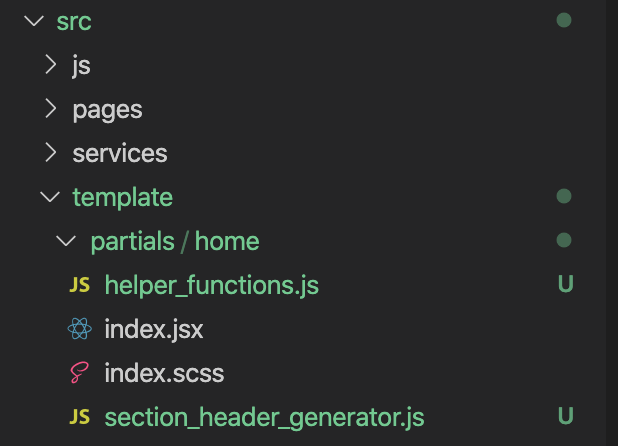
Download the file section_header_generator.js from this link, which contains a generator function for section headers. Move section_header_generator.js to the ./src/template/partials/home directory in your project. (If you are working with an existing project that uses a different directory structure, you may put the file somewhere else.) The directory should look like so:
Update homepage to use custom JavaScript
Open the file ./src/template/partials/home/index.jsx in your code editor. You will make several changes to this file to enable your homepage to use the custom JavaScript files from the previous step as well as the section_headers dataset from before.
Add imports
First, add import statements for the two files that were just added:
import sectionHeadersGenerator from './section_header_generator';
import { sort } from './helper_functions';
The beginning of your index.jsx file should look like so:
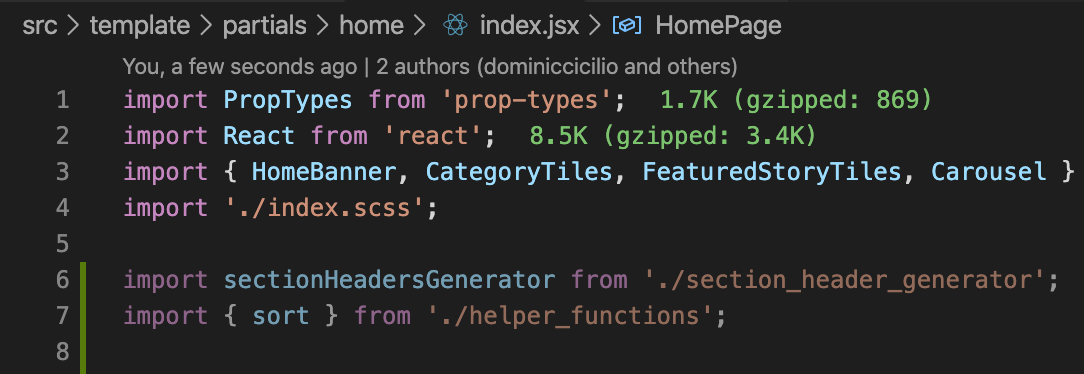
Next, still editing index.jsx in your code editor, add SectionWithHeader to the other components imported from 'cs-react-components':
import { HomeBanner, CategoryTiles, FeaturedStoryTiles, Carousel, SectionWithHeader } from 'cs-react-components';
The updated line in index.jsx should look like so:

Add reference to section_headers dataset
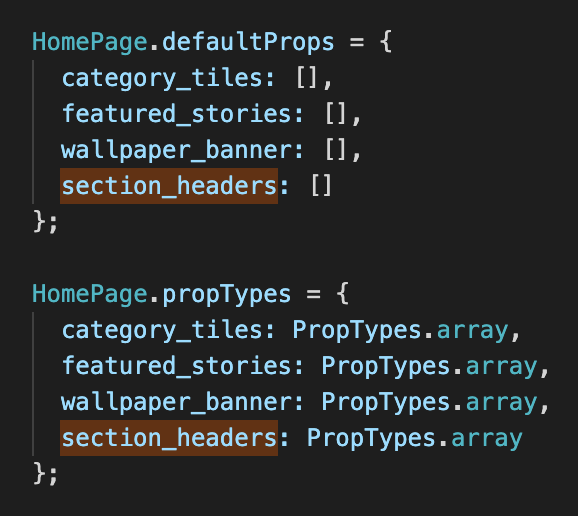
Next, a reference to the section_headers dataset must be added to index.jsx in a few different places.
First, add section_headers to the props:

Next, add section_headers to both HomePage.defaultProps and HomePage.propTypes:
Add generator and sort functions
Some additional code must be added to generate and sort the section headers using the custom JavaScript functions imported in a previous step. Above the return statement in index.jsx, add the following lines:
let sectionHeaders = sectionHeadersGenerator(section_headers);
sectionHeaders = sort(sectionHeaders);
Here's how your file should look:
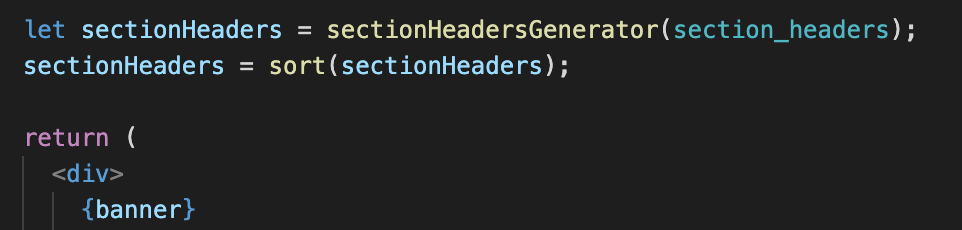
These lines initialize and sort an array called sectionHeaders, ensuring that there are default props for all indices and preventing any lurking undefined values.
Include SectionWithHeader in rendered output
Now add one or more SectionWithHeader components to the return statement in index.jsx, like so:
<SectionWithHeader {...sectionHeaders[0]} />
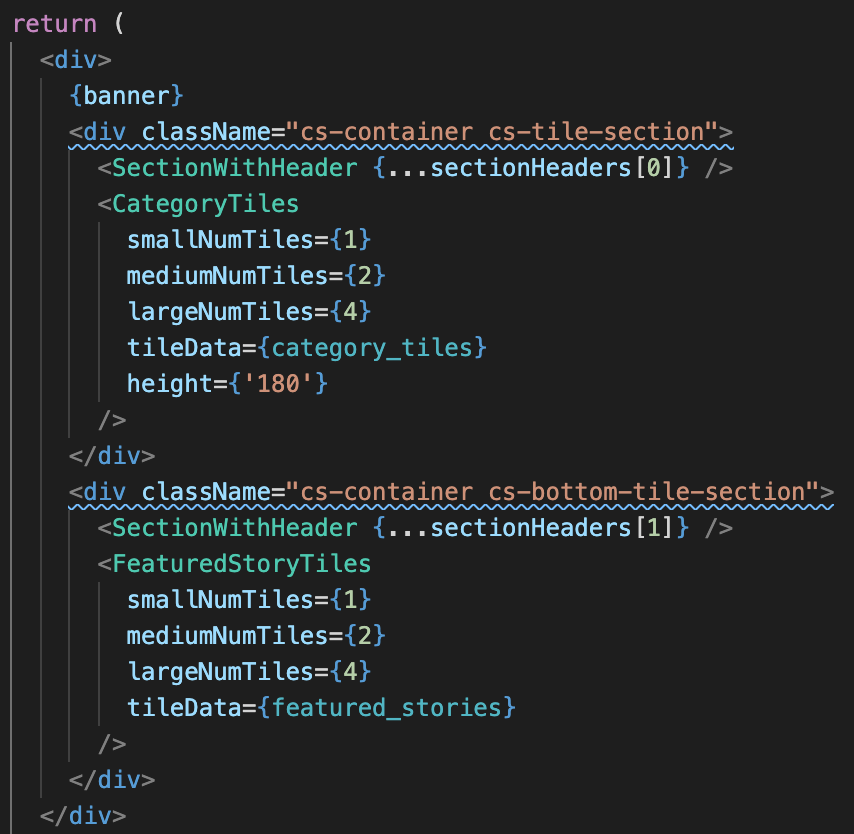
Including {...sectionHeaders[0]} passes all props of the first section header into the SectionWithHeader component. For additional SectionWithHeaders, increase the index from 0 to 1, 2, etc. in order to pass props for the associated dataset row based on its sort_order.
Upload dataset
Now upload the new dataset CSV section_headers.csv by following the instructions in Adding a New Dataset.
(The quickest approach is to simply run marble populate, but note that this will upload all datasets, not just section_headers.csv.)
Run homepage locally
Now you are ready to run and test your updated homepage locally. Execute the following command in your terminal from the project directory:
npm start
(Note that you may need to run npm install prior to npm start if this is your first time running the project locally.)
If you were successful, your browser will open and you should see an updated Rally homepage that features your section headers:

Deploy homepage
If everything looks good, you can deploy your updated homepage by executing the following command in your terminal from the project directory:
npm run deploy
(For more detailed information on deploying a homepage template, check out Deploying a Homepage Template.)
Update Bitbucket repository
To keep other developers informed of your changes to this project, be sure to commit and push your new section headers CSV and all other changes to Bitbucket.
First, add all changed files in the local directory to the Git staging area:
git add .
Next, commit the staged files to the repository with a descriptive commit message:
git commit -m "Added new dataset DATASET_NAME"
Finally, upload your committed changes to Bitbucket:
git push
Congratulations! You now have section headers!