Changing the Template Layout
Homepages use datasets to manage content, but these datasets cannot be used to control homepage layout. To change tile locations inside a template, you must change the template code. This guide will explain how to move existing homepage tiles above or below other homepage components.
Running a homepage locally for development
This guide assumes that you have an existing homepage project directory generated by Marble. To learn how to generate a new project, see Generating a Homepage Template.
When modifying homepage code, it is helpful to view your changes live in the browser by running the homepage locally on a special development server. To do this, open a terminal and run the following command from your project directory:
npm start
This command will start a local server on port 1414. It should automatically open up a browser tab with the address http://localhost:1414.
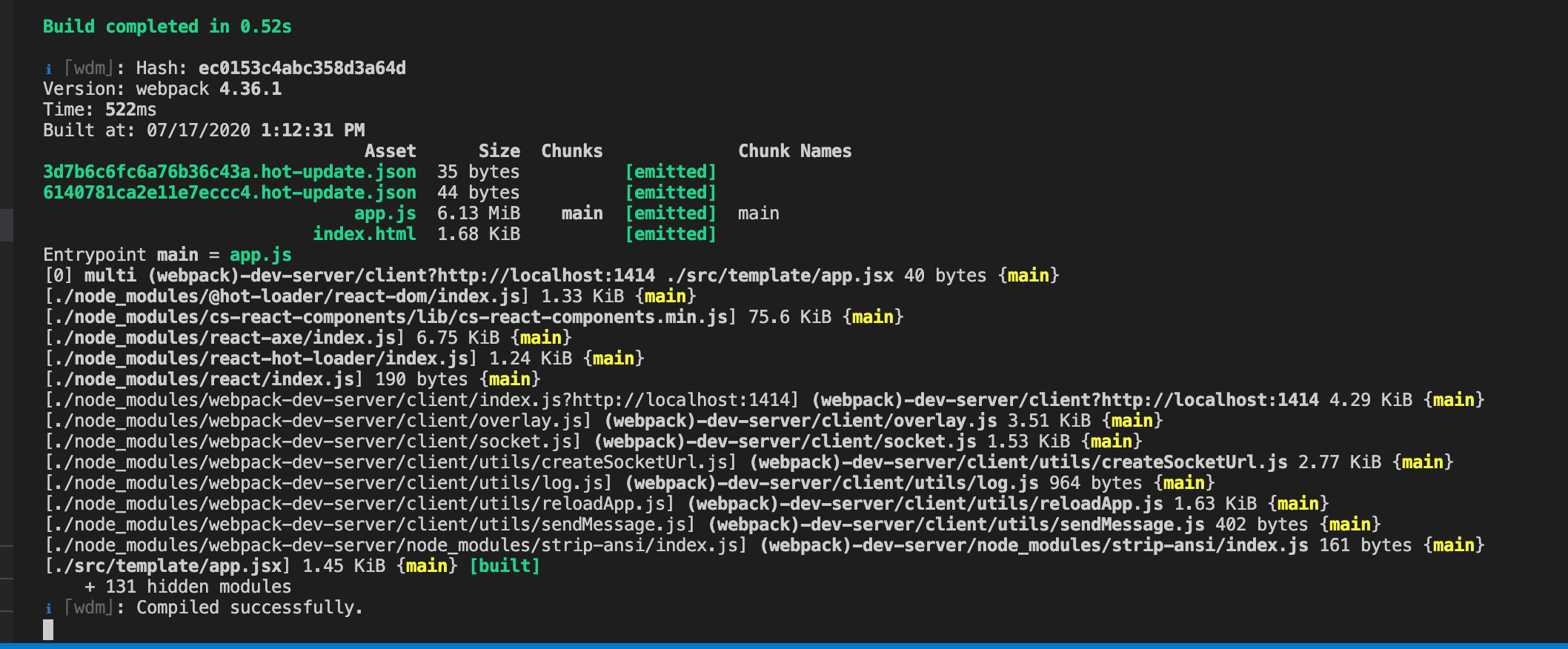

If you see a blank screen, it's probably because you have not yet populated homepage datasets onto the Socrata domain. (Even though you are only running the homepage locally for now, it still needs to refer to the homepage datasets on your domain.) To fix this, you need to upload the datasets. Hit Ctrl-C to stop the development server and execute the following:
marble populate
Once the datasets have been populated, re-run npm start and again visit http://localhost:1414. Your homepage should now appear as expected. (If you're still getting a blank screen or other issues, please contact the #gs-dev slack channel.)
Editing the template
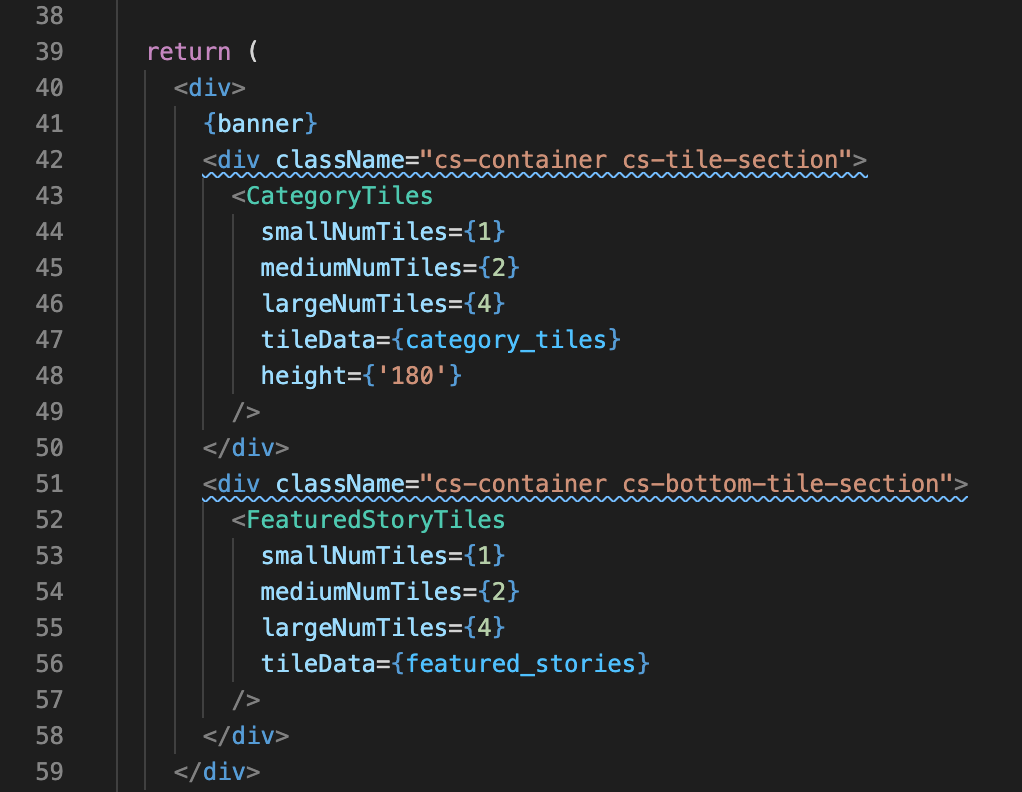
Now let's make some changes to the template code. Start by using a code editor to open the file src/template/partials/home/index.jsx in your project directory.
This file handles the homepage's layout. If you scroll down, you should see a return statement like the following.
Moving featured story tiles
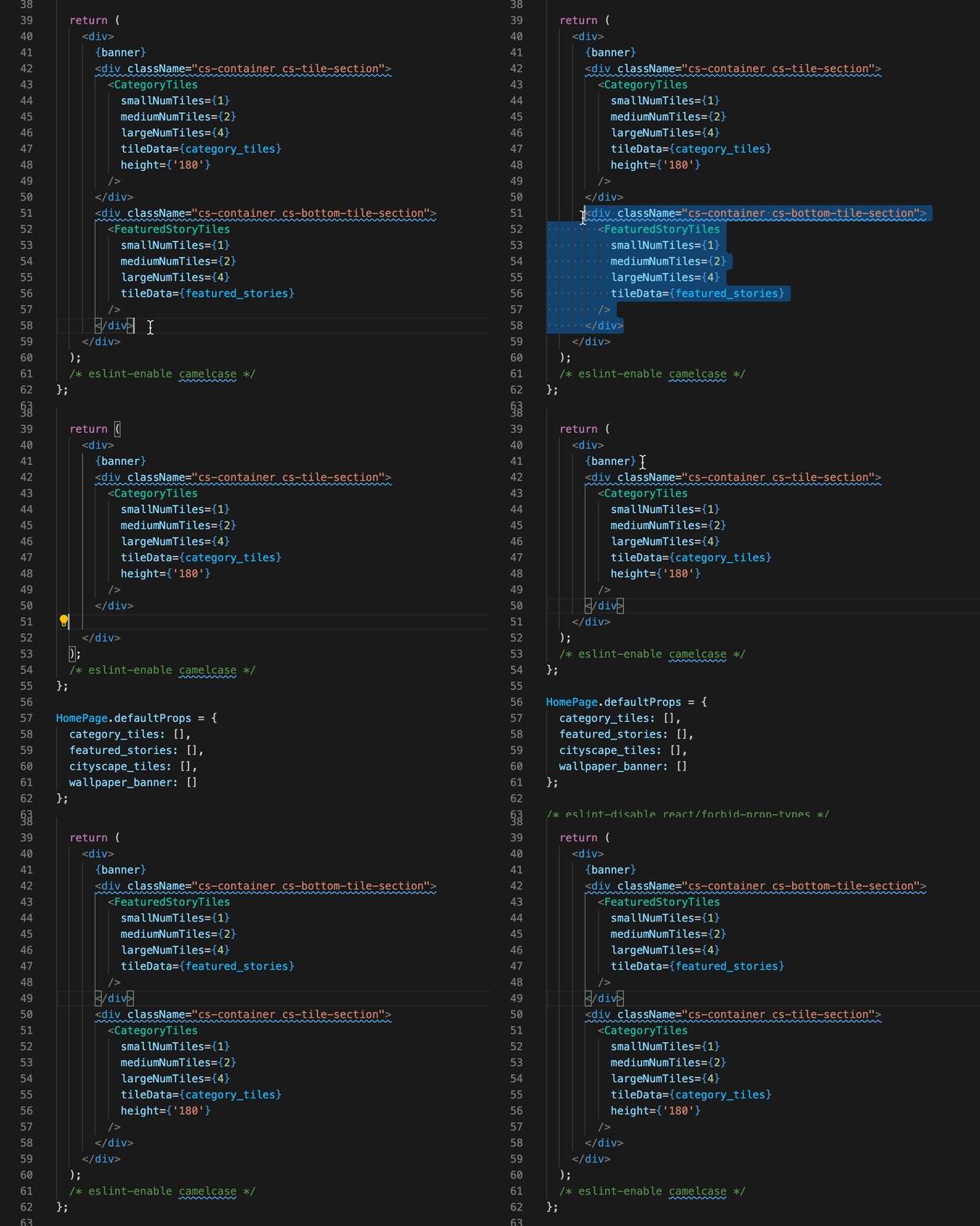
One simple modification we can make is to move the featured story tiles above the category tiles in this homepage template. Cut and paste the feature stories section from its original location so that it precedes the category tiles section, as shown below.
That's it!
Now, if you revisit the browser window that is pointing to the development server at http://localhost:1414, you should see the new section's order reflected.
Deploying the changes
To see these homepage code changes on your Socrata domain, they must first be deployed.
Note: Be sure to verify that you are using the desired domain before running this command. Here's how to check: First, check the .marble_default file in your project directory. This file contains a filepath reflecting the default configuration Marble will use when deploying your project. Using a code editor, open the configuration file listed in .marble_default and find the domain field. This is the domain to which your modified homepage will be deployed.
Since you've just changed the homepage code (not the homepage datasets), you only need to run the following command:
npm run deploy
This command will upload the latest web content and code (CSS, JS, YAML) to the Socrata domain. Now, if you view your Socrata domain in a browser, you should see the updated homepage. (If you don't see the changes reflected immediately, try a hard browser refresh.)
Congrats! You have successfully changed your homepage template's layout.